Two ways to use it
Let's start with the basics: SnapCal has two independent paths for reading a screenshot, and which one you get depends on how you trigger it.
Path one: recognition inside the app
Open the app and pick a screenshot with timing info in it from your photo library — or send a screenshot straight to SnapCal from any app's Share Sheet or an iOS Shortcut. The backend runs pure visual recognition: it doesn't convert the image to text first and then guess, it hands the image directly to the recognition model. That avoids letting OCR typos contaminate the judgment downstream (for example, a character in a chat header's name getting misread as a different, similar-looking character — the model's "high confidence" call based on that wrong character is actually more dangerous). Recognition usually finishes in 1-2 seconds.
Path two: one-tap capture
This is the path that doesn't require opening the app at all: once you've set up a trigger (a back tap, the Action Button, or a floating ball), the system auto-screenshots, reads it in the background, writes it straight into your calendar, and sends a notification telling you the result — the whole time, all you do is glance at your phone to confirm it landed.
After it reads the screenshot, there are two ways it lands
Whichever path you took, once recognition is done, the event lands in one of two ways.
When conditions are met: zero-confirmation, straight to your calendar
When a screenshot's recognized title, date, and start time are all complete, confidence is high enough, the date falls within a reasonable range (roughly within a month of today either way), and it's not a chat screenshot, SnapCal skips the results page and writes the event straight into your calendar. The success page shows it's been added and gives you a 10-second undo window — tap it, and the event gets reversed along with the read it used from your quota.
Chat screenshots (WeChat, iMessage, DingTalk, and the like) are treated specially and never take the zero-confirmation path, even at high confidence — you always see the results page first. The reason is direct: the small text near the header and avatar in a chat interface is the easiest thing to misread (visually similar characters get swapped for each other), and the model makes its judgment based on that text. If the text is wrong, the model's "high confidence" conclusion is wrong too — and that's a structural risk that only your own eyes, as the last check, can catch.
Everything else: confirm on the results page
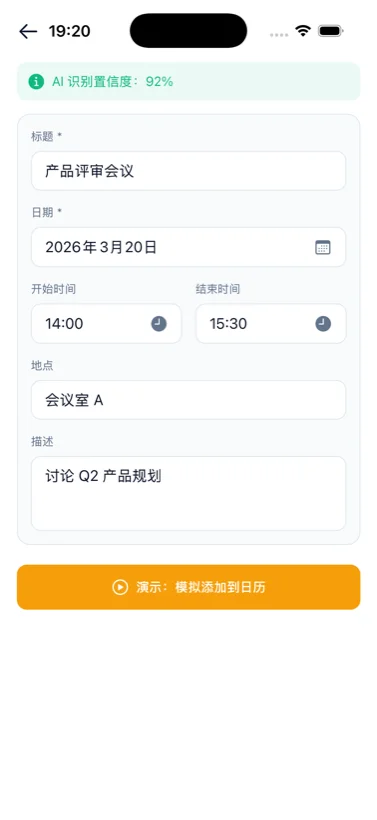
Any screenshot that doesn't meet the zero-confirmation conditions lands on the results page. A colored banner at the top shows the AI's confidence (displayed directly as a percentage), and every field — title, date, start/end time, location, description — can be tapped open and edited by hand. Once you've confirmed everything's right and tap Create, that's when SnapCal actually writes it into your calendar.
Where it writes to
SnapCal currently has real integrations with exactly two calendars: your iPhone's local Apple Calendar (written directly through the system's EventKit) and Feishu Calendar (which needs a one-time setup on your part — see the related article below). You can check both on a single read to write to them at the same time, and if one fails, it doesn't affect the other.
If you've linked a Google, Outlook, or similar account under iPhone Settings → Calendar → Accounts, SnapCal really can select calendars under those accounts when writing to Apple Calendar — that's a capability of Apple's own EventKit account system, not SnapCal building a separate integration with Google or Outlook.
Meeting links and notes don't get lost either
If a screenshot has a Tencent Meeting, Feishu Meeting, Zoom, Teams, or DingTalk link, meeting ID, or passcode in it, SnapCal writes them into the event description exactly as they appear — open the calendar event and they're right there, no need to dig back through your chat history to find the link.
How the free quota works
You get 10 reads a month for free, and a read only counts against that quota once it's successfully saved to your calendar — preview reads and the background pre-read from one-tap capture don't count toward the 10. Once you've used them up, you can subscribe monthly or yearly (US pricing is $1.99/month or $9.9/year, and the price in your region is shown in the app), a new subscription comes with a 7-day free trial, or you can buy the lifetime membership once.
